Pspad vs Notepad++ - PSPad Editor
PSPad offers a compelling alternative to Notepad++, especially for developers who need built-in FTP support and hex editing capabilities. While both are free text editors for Windows, they target slightly different workflows and coding needs.
Core Feature Comparison
Interface and Performance
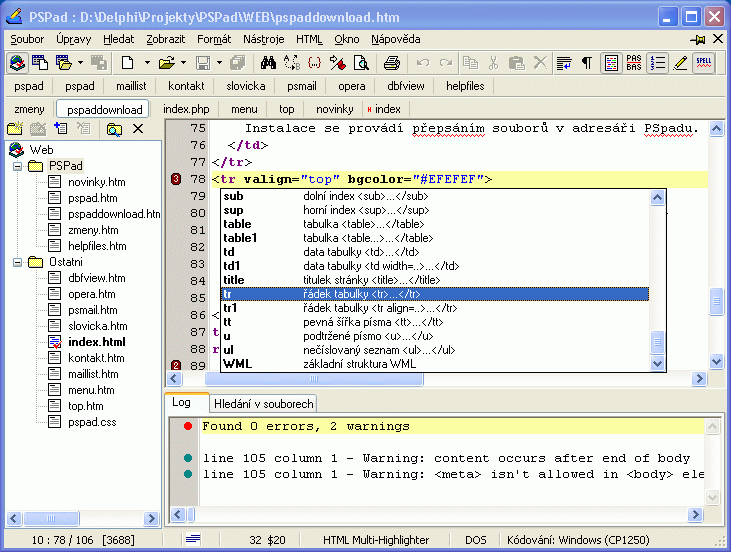
PSPad Editor provides a tabbed interface similar to Notepad++ but with a more traditional Windows appearance. The lightweight code editor loads quickly at just 4MB and handles files efficiently, though Notepad++ edges ahead when processing very large files over 100MB.
PSPad's split-screen editing displays multiple files simultaneously, while Notepad++ requires manual window arrangement. Both editors offer customizable toolbars, but PSPad's layout feels more intuitive for Windows users familiar with classic desktop applications.
Programming Language Support
Both editors excel as syntax highlighting editors, supporting 30+ programming languages including PHP, HTML, XML, Java, JavaScript, and Python. Code folding works reliably in both programs, though PSPad's implementation feels more responsive when collapsing large functions.
Notepad++ provides superior plugin architecture with hundreds of community extensions. PSPad compensates with built-in features that eliminate plugin dependencies. For basic coding tasks, both deliver excellent performance without the overhead typical of full IDEs targeting professional software developers.
Key Differentiating Features
Remote File Management
PSPad's standout feature is its integrated FTP client, allowing direct editing of remote files without separate applications. Drag files from the FTP panel into the editor, make changes, and save directly back to the server. This workflow proves invaluable for web developers maintaining multiple sites.
Notepad++ requires external FTP plugins or separate applications like FileZilla for remote file access, adding complexity to the development workflow.
File Analysis Tools
PSPad includes a built-in hex editor supporting files up to 2GB, plus file comparison showing line-by-line differences. These features come standard rather than requiring plugin installation. The portable code editor approach means these tools travel with your development environment.
When evaluating pspad vs notepad++, PSPad's integrated approach contrasts with Notepad++'s plugin ecosystem. Some developers prefer PSPad's everything-included philosophy, while others value Notepad++'s extensive customization through community plugins.
Licensing and Availability
Both editors maintain completely free licensing models without hidden costs or premium tiers. PSPad runs exclusively on Windows operating systems, while Notepad++ also maintains Windows-only compatibility despite community ports.
The portable version setup process requires no installation, making PSPad ideal for USB-based development environments or machines with restricted admin access.
Performance Considerations
For pure text editing speed, both editors perform similarly on modern Windows machines. PSPad's macro recording automates repetitive edits through keystroke playback, while Notepad++ offers more sophisticated macro scripting through plugins.
Regex search performance favors Notepad++ in complex pattern matching scenarios, though PSPad handles standard find-and-replace operations efficiently. Both editors restore sessions reliably, maintaining tab states between program launches.
Final Assessment
The pspad vs notepad++ decision depends on your development workflow priorities. Choose PSPad if you need integrated FTP access, built-in hex editing, and prefer self-contained applications. Select Notepad++ for extensive plugin support, larger file handling, and active community development.
Both free text editors serve Windows developers well, with neither option disappointing in daily coding tasks. PSPad excels in web development scenarios requiring frequent remote file editing, while Notepad++ dominates in extensibility and community resources.
Compare PSPad Editor Head-to-Head
More PSPad Editor Guides
Explore Developer Tools
Browse all developer tools on BigForkSteering. Also see Free software and Windows options.